How to Invert Film Negatives on iPhone
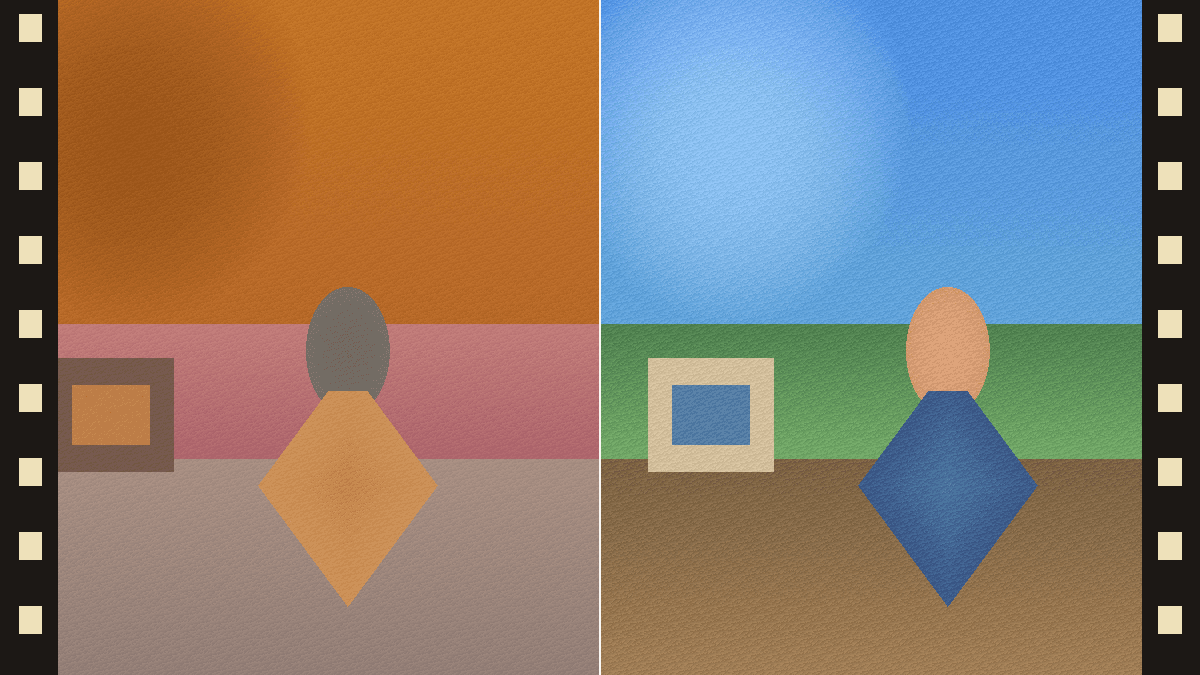
The easiest way to invert film negatives on iPhone is to open a browser viewer, hold the negative against a white backlight, and allow camera access. For a better saved image, take a still photo first, then invert and correct the orange mask in an editor.
Use live preview first
Open Negative Viewer in Safari or Chrome on the iPhone you will point at the film. Use another phone, tablet, or laptop as the white backlight. Once the camera starts, the page shows a live positive preview.
Live preview is useful because it lets you sort frames before deciding which ones deserve a higher-resolution capture.
Capture a better still
- Use the rear camera, not the selfie camera.
- Keep the iPhone parallel to the film to avoid keystone distortion.
- Lock focus and exposure if your camera app allows it.
- Save the original capture before editing so you can redo color later.
Browser preview vs. edited still
| Workflow | Best for | Limit |
|---|---|---|
| Browser live preview | Sorting and instant viewing | Lower than still-photo resolution |
| iPhone photo + inversion | Sharing and light editing | Needs manual color correction |
| Camera scan | Archival frames | Requires extra gear |
Frequently asked questions
Does iPhone need an app to invert negatives?
No. A browser viewer can invert the live camera feed for preview. A dedicated editor is only needed if you want higher-quality still files and finer color control.
Why do iPhone negative photos look blue after inversion?
Most color negatives have an orange base. After inversion, that orange becomes blue or cyan. Adjust white balance and tint after the inversion.
Is the camera feed uploaded?
Negative Viewer processes the live frame locally in the browser. The site does not need an upload endpoint for camera preview or PNG capture.